
Not now…
It is on the left of the step's card. About the step:
| Answer | What happens |
|---|---|
| Later | One place further down. The run moves on. |
| At the end | After everything else still to come. |
| Decide later | Stays where it is, with a question about it in In hand. The run moves on and comes back to it at the end. |
| Come back to it… | To the end, and back at a moment or place you name. |
| Check in on this step… | To the end, asking until you answer. See Check-ins. |
| Skip | Goes round it, and the record says so. |
| Not in this run | Out of today only. |
| Turn it off | Out of every run until you turn it back on. |
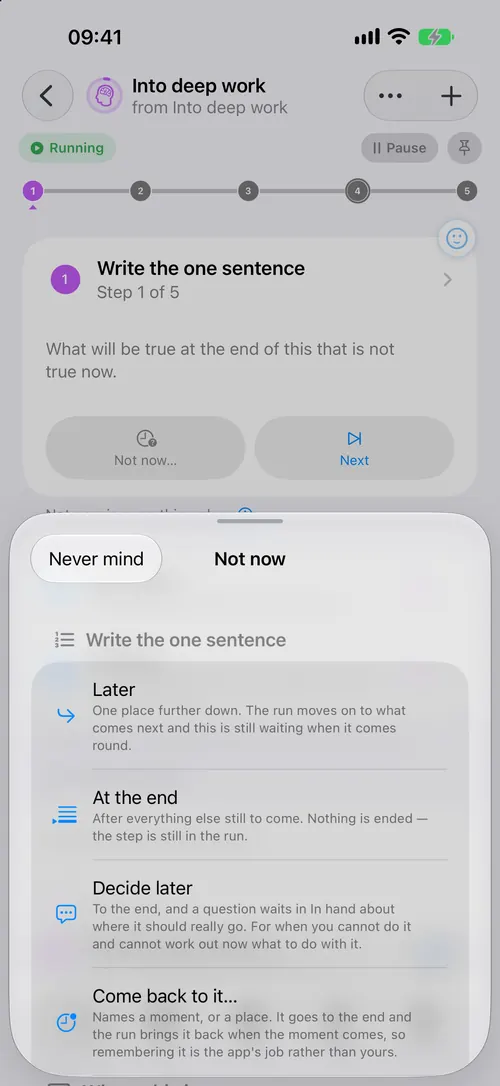
Also Skip, ask me at the end. About the run: Pause, Come back to it…, Check in on the run…, your own statuses, and Stop.
Later, At the end, Decide later, Skip and Not in this run each put up a bar with Undo for a few seconds. Undo puts the run back as it was: the order, the step it was on, and no question left behind.
Pause
Pause, at the top of the run's page, does it in one tap and says Paused until you press it again. While a run is paused, no clock runs, nothing moves, and the Lock Screen card shows Resume.
Other places to put a step off
- The run's list of steps. Swipe a step to the right: Do it later and Do it last, or for a step still ahead, Do it now, Do it next and Do it last.
- The watch. The ellipsis on the run: Do it later, Do it last, Pause.
- The Lock Screen card has Decide later instead: the step stays where it is, the run moves on, and a question about it waits in In hand.
Decide later
The step keeps its place. Its bead on the line is hollow with an orange ring, and in the run's list of steps it says Left for later. In In hand its question has two answers: Now brings the step into your hands straight away, and Skip writes it down as skipped.
You do not have to answer. When the run reaches its end with steps left for later, it does not finish. It says how many there are and lists them in their own order. The first moves up to after everything you have done, and Next starts it there; when that is done, the next one left moves up the same way. Skip them ends the run. Of five steps with the second and fourth left, the run ends as 1, 3, 5, 2, 4, which is the order you did them in.
Come back to it… and Check in on this step… still move the step to the end, because there you have said where it goes.
Come back to it…
Pick In an hour, This evening, Tomorrow, Next week, or your own moment or place. Choose Next or Now for where it returns, then press Put it off.
A time brings it back then, or the next time the app is awake. A place needs Know when I am at one (More → Places) and Always access to your location, and is noticed once you have stayed a while. See Place and Focus.
Your own answers
A wait you make again and again — a follow-up in two working days at ten, back sooner if the reply arrives — can be saved. Set it up in Come back to it… and press Save as preset…: name it, and choose whether it is offered on this step, on this routine, or everywhere. It is then the first answer under Not now…, one tap, and the first button in Come back to it….
A follow-up puts aside only the step it is pressed on: the letter goes to the end and the rest of the run goes on, and the step comes back at its moment or as soon as the reply arrives. Choose Puts down: The whole run in the preset when nothing after that step can happen without the answer. "The reply arrives" means a notification the bridge hands over, a shortcut's Handle Event or a connection sending an event, with the word in its app, name or title; the text inside a message is not read.
A step can carry its own follow-up, usually written by an assistant. Both kinds are under More → Wait presets, where you change or remove them. On the watch, a step's own follow-up is the first answer in Come back to it.
When a time has passed
A step with a time to be done by that has gone says Overdue on the run's page. Tap that line for Time passed: Do it now, Change the time… or Take the time off. Where several steps of the run are late, From tomorrow, From next week or Choose when the first is due… moves all of them and keeps the gaps between them. Count them from a date… counts them from a date instead, so the next slip is one date moved. See Dates.
In In hand → Time passed, swipe a row for Change the time… and Take the time off. A run with several late steps has one row of its own with Move all…. All of these change this run only, and the bar that comes up undoes them.
iOS 26
All of this works on iOS 26.1. There, a Lock Screen button pressed after the system closed the app starts it first, which can take a few seconds.
When something goes wrong
- Not now only says "The run is paused". Press Resume, then choose.
- A place never brought it back. Check Know when I am at one, and Always access in iPhone Settings → Privacy & Security → Location Services.