
The first screen
It asks one question, with six answers: Being on call, Mornings and evenings, Work and focus, Home and everyday, Training and the body, and Learning and making.
- Pick one. Three starter routines of that kind go into Routines, and How this works starts.
- None of these, just let me look. How this works is added to Routines but not started.
- Already use it on another device? Bring it from iCloud. Shown where iCloud is available. Your routines come down from iCloud instead.
Then the app asks to send you notifications. Allow it, or nothing will ever reach you first.
Walking it
- Read the step. Some steps carry a button, such as Open the routine or Open Settings.
- Press Next, at the right-hand end of the row of buttons. On the last step it says Finish.
- Pressed Next by mistake? Undo appears at the bottom of the screen for a moment.
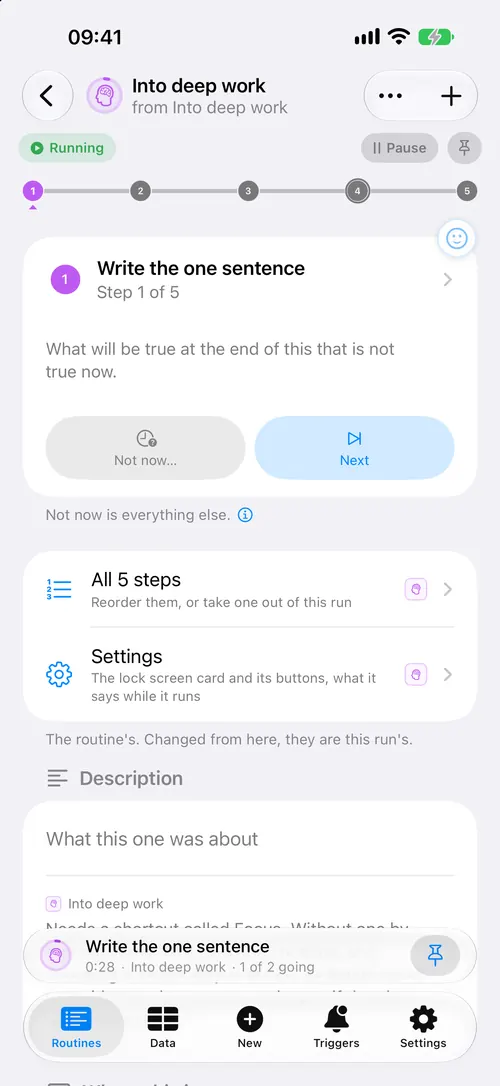
Next is also on the Lock Screen card and on the watch. If you leave the run's page, the run stays in the bar at the bottom of the app. Tap it to come back.
The second step asks you to rename it or write a note on it. That change lands on this run only, and an orange band at the top starts counting. The third step explains the band: see Keep or Only here.
When it ends
The first time a run finishes, a screen says what you did and how long it took. Done closes it. How this works then puts itself away. Settings → How this works brings it back and starts it again.
Starting any other routine
- Open the routine and press Start, then Start now. You stay on the page, and the run appears in the bar at the bottom.
- Or press the plus in the middle of the tab bar, then Start a routine…. This one opens the run.
When something goes wrong
- Next is greyed out. The run is paused. Press Paused at the top of the run's page.
- Next does not move on. The step is waiting for something, and says what above the buttons. Move on anyway goes past it.
- You said no to notifications. Turn them on in iPhone Settings → Routine Run → Notifications.
- How this works is gone. It puts itself away at the end. Settings → How this works brings it back.