
Where to find it
Every place that can be written by an AI has a Describe… item, first in its menu:
- New routine: the plus in the middle of the tab bar, then Ask an AI to write it.
- Change a routine: the routine's ellipsis, Describe changes…
- Change one step: the step's ellipsis, Describe changes…
- Add to a routine or a run: the plus on its page, Describe it…
- After a run: the run's ellipsis, Describe what to change…
- What a run collected: the review page, Sort these out
- Notes: the notes page, Deal with these notes
- Triggers: the Triggers tab, Describe it…
They all open the same page.
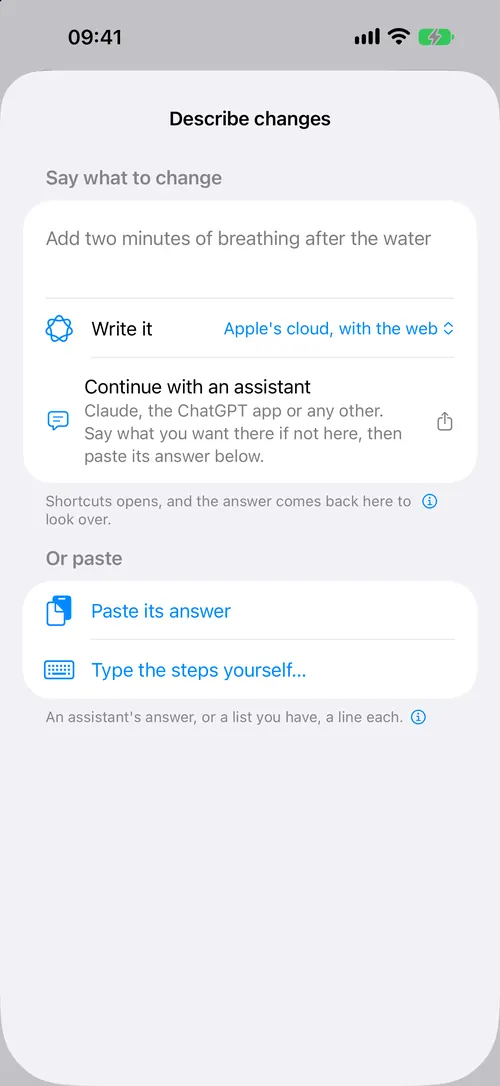
The page
- Say what it is for. One sentence is enough: "A morning: water, ten minutes of stretching, a shower".
- Write it. The name beside the button is who writes it. Tap the name to choose another. Your choice is remembered. See Who writes it.
- Or continue with an assistant. Sends the request to Claude, the ChatGPT app or any other assistant through the share sheet. Say what you want there if you did not say it here. When it answers, copy the whole answer and come back.
- Or paste. Paste its answer takes what you copied, words around it and all. When you come back with something new copied, the button says Paste what you just copied. Type the steps yourself… opens a box for a list, one step a line.
What comes back
The answer is never shown as code. You see what it made:
- A new routine: its name, the first steps, and three buttons. Keep it puts it in Routines. Start it walks it once, and the run asks at the end whether to keep it. Look it over shows every step, and every link or shortcut it would use, before you decide.
- Changes to a routine: how many, and Look over the changes, which shows each one before it is applied. A change can be undone.
- Answers about a run: what to keep and what was only for that run, and Look over the answers.
- Triggers: each trigger it wrote, to add one by one.
If the answer cannot be read, the page says why in a sentence, with Copy this for your assistant so you can paste the reason back to it.
What an assistant can and cannot put on a step
It can write names, descriptions, lengths, tips, tags, a colour and a symbol, links, shortcuts to run, and triggers. It cannot add a webhook, a calendar event, an alarm, a Home scene or a Health entry. Those are added by you in the app, where you can see them.